OneClickHelp – 5 solutions in one program
OneClickHelp offers an elegant approach for creation of help materials and e-books (chm books, e-books). You create as usual the document in MS Word or in LibreOffice and for one click receive Chm, Aspx, Html help with structure and formatting as in your document. If you have time, you can add additional elements –slide show, navigation, fixed header and footer, expanded/collapsed groups of text, zooming images etc. Conversion can be executed both through the interface, and through the command line. Therefore, one document becomes an electronic reference, part of the site and hardcopy documentation.
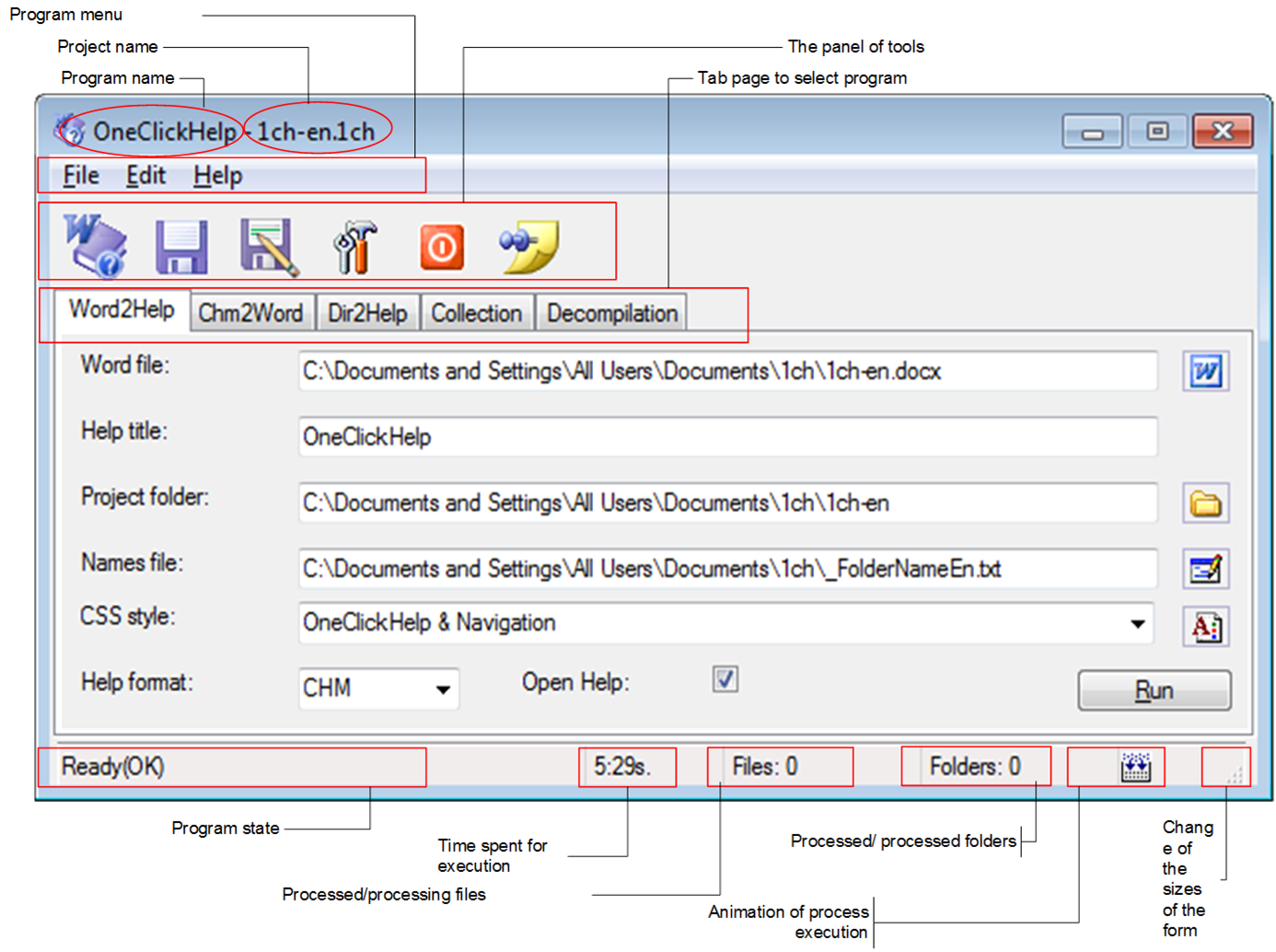
Overview
OneClickHelp designed to:
1. Conversions MS Word document in Help with format Chm, HxS, Web (Word2Help, Word2Chm, Word 2 Aspx ,Word 2 Html, Doc to Chm, Word to Chm). It can be a file with an such extensions as doc, docx, rtf, xml (word xml), htm, html, prepared in MS Word or for example in Open Office, i.e. program does what is usually searched for by key words in the internet: doc to chm, docx to chm, word to chm, doc to help, doc 2 chm, docx 2 chm, word 2 chm, doc 2 help, help authoring tool, word to help, chm maker, chm creator.
2. Conversion folder’s contents to Help(Chm, Web). Frequently there are already materials prepared as html and located in folders. For example, a part of a site or even site. Such folders it is possible to scan and create the Help (Chm, Aspx, Html).
3. Creation of Chm Help collections. The Chm files can be gathered in a collection, and you can receive the integrated Help with the common navigation, search and other convenience.
4. DeCompilation Chm. The Help can be recompiled to receive a set of initial html pages and the part of the project files.
5. Transformations of Chm in Word (Chm2Word). Chm files can be converted back to Word file.
Download now... Download OneClickHelp application
System requirements and installation
Hardware requirements
Requirements are defined by a package MS Office 2003/2007/2010/2013.
Software requirements
Operation system Windows XP/Vista/Windows 7 (x86/x64).
For work of the program, it is necessary to install a number of auxiliary programs.
1. Microsoft .NET Framework Version 4 (x86/64)
As the application is written on VB.Net, it is necessary to install a platform .Net version 3.5 and the subsequent SP. Test for the .NET Framework 3.5.
2. MS Word 2003/2007/2010/2013/2016
3. HTML Help 1.x
If you are going to create Help in format HTML Help 1.х (CHM help), it is necessary for you to load and install free-of-charge software package MS HTML Help Workshop. The package consists of a set of programs for creation of Help, contains the compiler for creation CHM help.
Download MS HTML Help 1.x from the home page.
Installation OneClickHelp
1. After successful installation of the programs described above, you can install OneClickHelp. Rights of the Admin are necessary for you. Download the distribution kit. Unpack it and run OneClickHelp.exe as administrator.
2. To receive the license (temporary or constant) start the OneClickHelp.exe as administrator. Execute steps from section Import License. After license reception, on a desktop you will find an icon  to start the program. The program also can be started as usual: Start/Programs/HelpSoft/OneClickHelp. In Windows XP, Vista/Windows 7/8 (x86, x64) it is possible to work under the usual user too.
Download Help now... Download OneClickHelp Help file (in format CHM)
What’s new in 1.9.114 (14-05-2017)
· Fixed a bug with the location of the license file.
· The product has been “translated” into the .Net Framework 4.0
· Improved registration process.
· Added ability to delete paragraphs, color-marked yellow.
· Updated update process.
Quick start
The simplest way to create the Help. Start the program. Press's button  , program became on top of all other windows.
1. Drag your MS WORD document from the Explorer in a field for Word file (the uppermost white rectangular), drop (let off) it there.
2. Select Open Help check box.
3. Press “Run”.
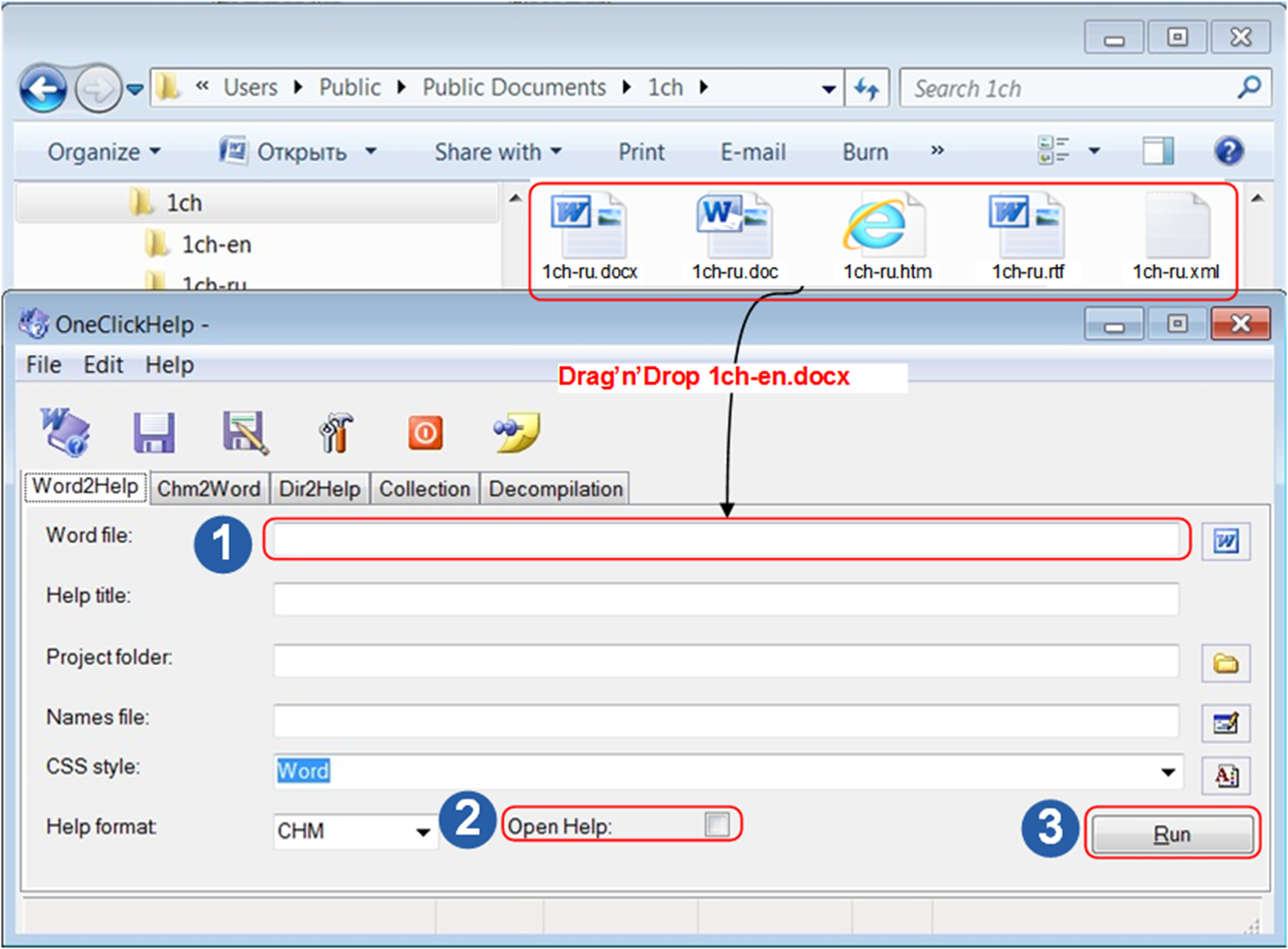
Depending on the size of the document, after a while, the Help will appear.
It happened? Working with style you can improve Help presentation. Choose in a field CSS styles - OneClickHelp and again press «Run». With styles, you can do such…
Purchase
OneClickHelp – is a free software. Download, delete the previous version, install and use it.
Thank you for being here! Support the project by donating as much as you can
Transfer via PayPal to the author on posudinaad@gmail.com.
or